Applicable Models: TerraMow Mini Series
This guide explains how to update your robot’s firmware over the air (OTA) using the TerraMow Pro app to get the latest features and performance improvements.
Note: Only the robot owner’s account can update the firmware.
Before You Start
1. Sign in to the app using the robot’s owner account.
2. Make sure the robot is connected to a stable Wi-Fi network.
3. Make sure the robot’s battery level is above 50%.
4. Press the power button on the robot’s control panel.
Update the Firmware
You can start an update from an update notification or from the robot’s settings.
Method 1: Update from a Notification
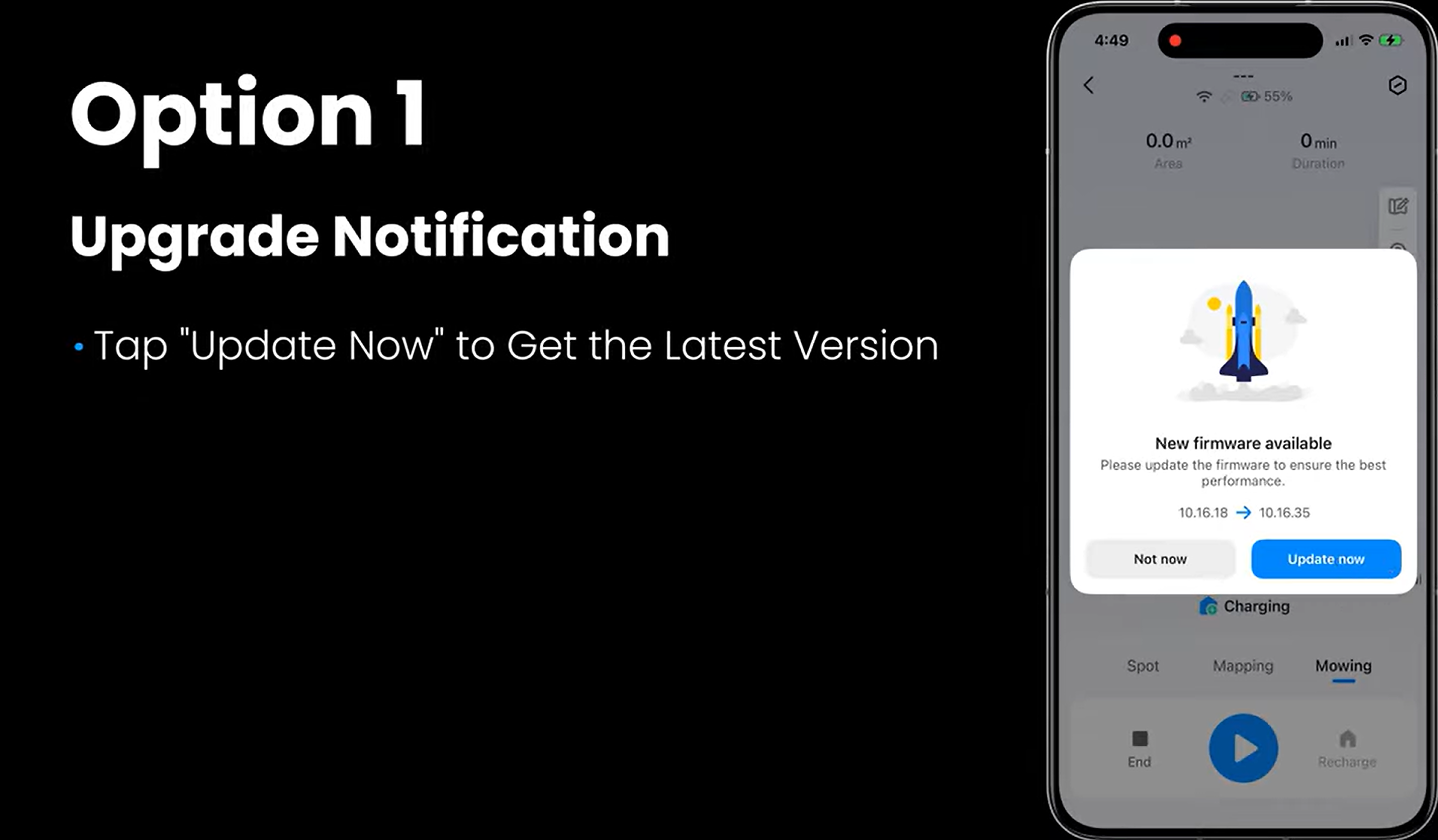
1. Open the TerraMow Pro app. A pop-up notification or a red dot on the device page will indicate an available update.
2. Tap "Update Now".
3. Follow the on-screen instructions and wait for the progress bar to reach 100%.
Method 2: Update from Robot Settings
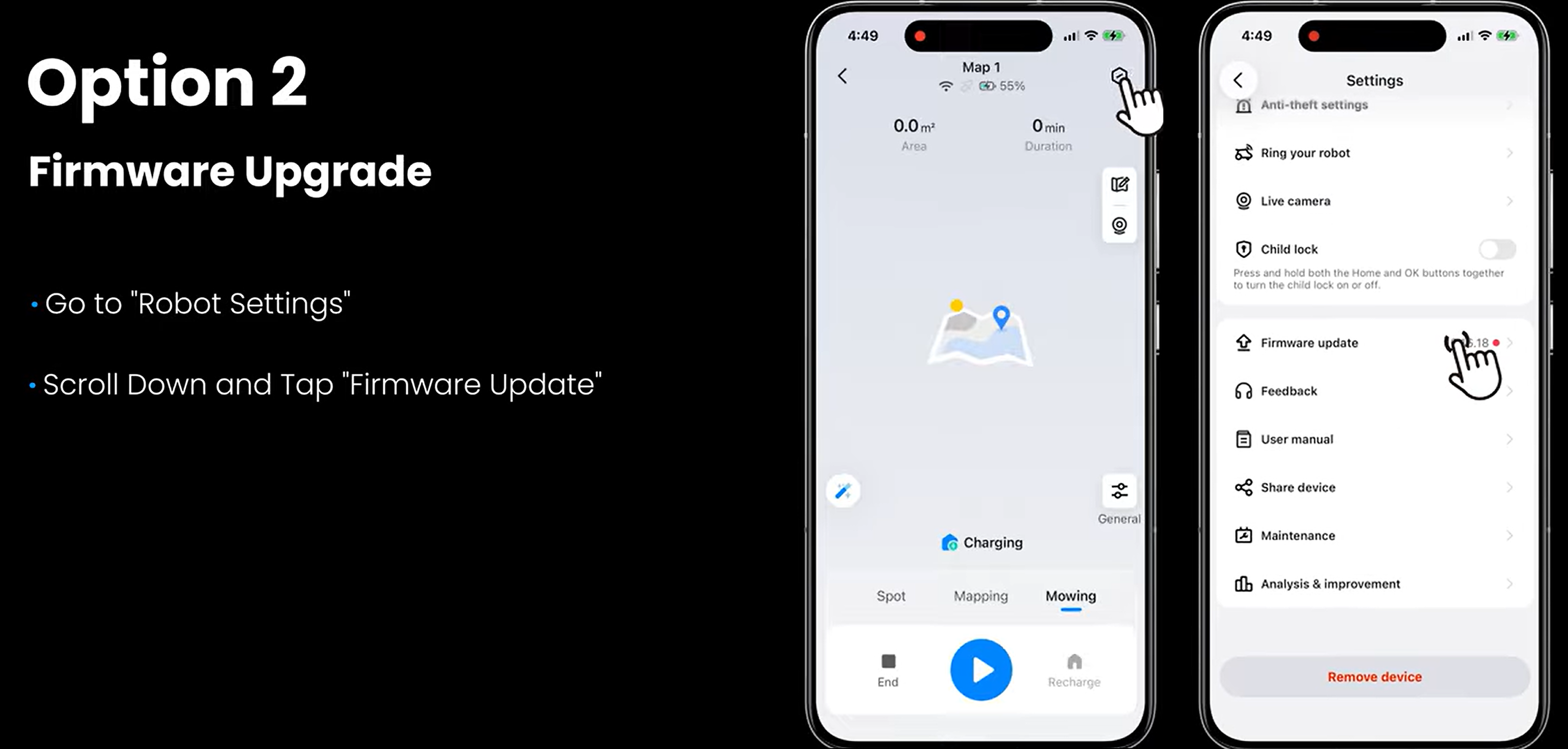
1. Open the TerraMow Pro app and tap the settings icon
2. Scroll down and tap "Firmware Update"
3. Click "Update"
4. Follow the on-screen instructions and wait for the progress bar to reach 100%.
Update Stuck or Interrupted?
If the update gets stuck, fails, or is interrupted, refer to Troubleshooting: Firmware Update Stuck or Interrupted.
Still Need Help?
For further questions or assistance, contact the TerraMow Customer Service Team at support@terramow.com or submit a support ticket.