Applicable Model: TerraMow V & S Series
This section covers the key features of Zone Editing, allowing you to customize your lawn management effectively.
Key Steps of Zone Editing
1. Click the map-editing icon.
2. Select "Zone editing".
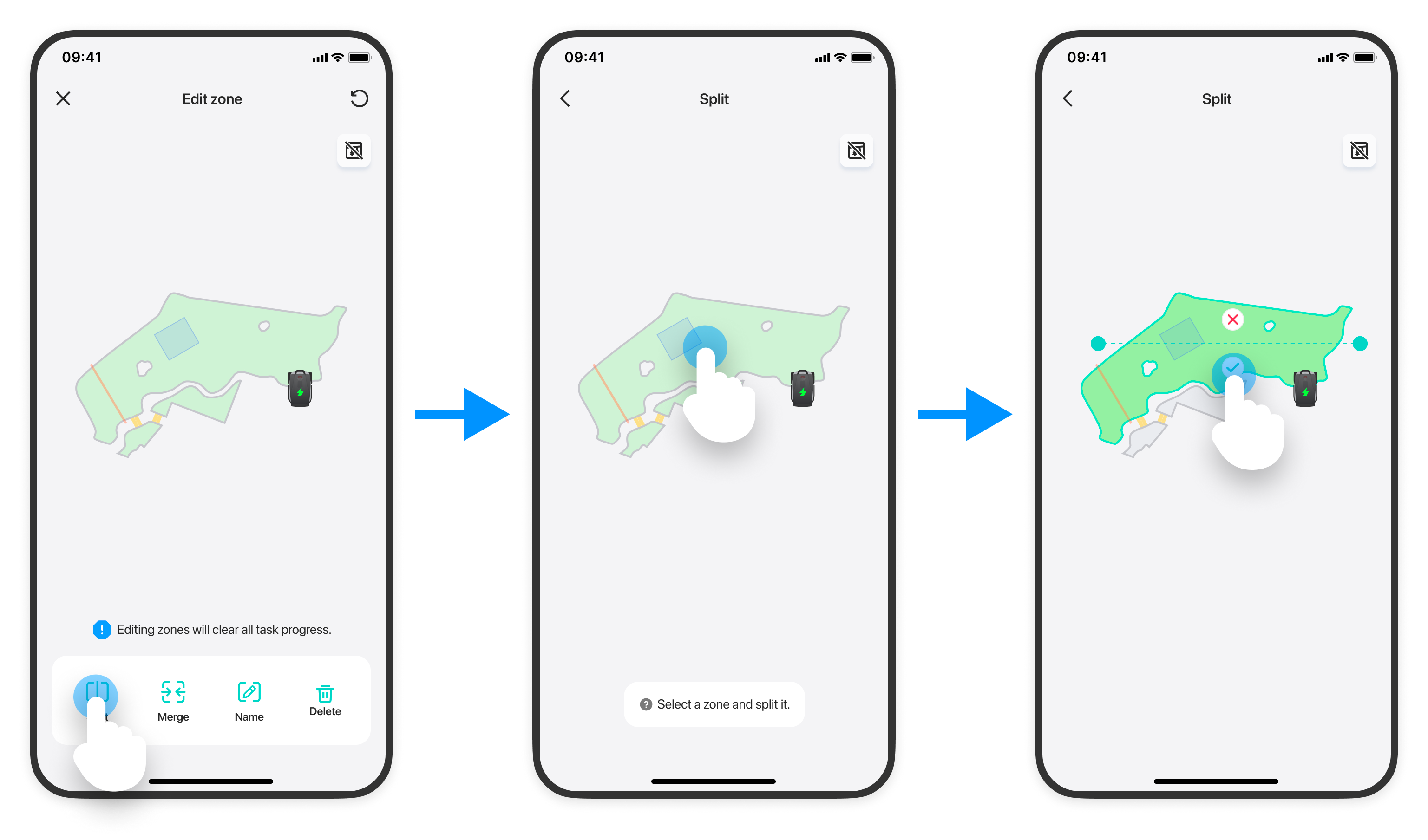
Splitting Zones
If a zone needs to be divided into smaller sections for specific tasks, you can easily split it. This allows for more precise control over mowing parameters for each new zone created.
Merging Zones
Conversely, if you have multiple subdivided areas within the same lawn, the merging function allows you to combine these zones into a single larger area. This simplifies management and scheduling of mowing tasks.
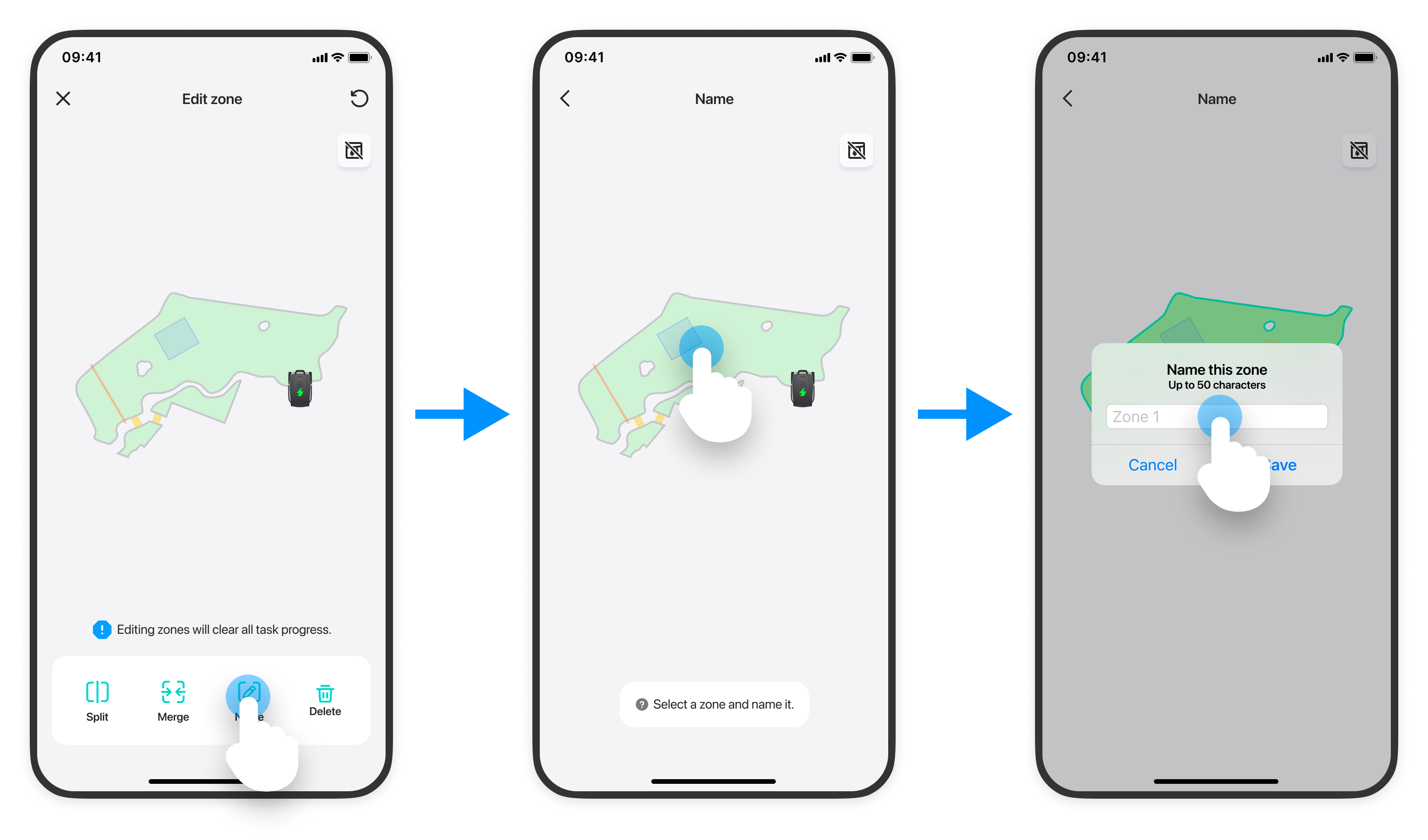
Editing Zone Names
You can rename each zone to easily identify its purpose or location within your lawn. This feature helps in organizing and managing multiple areas efficiently.
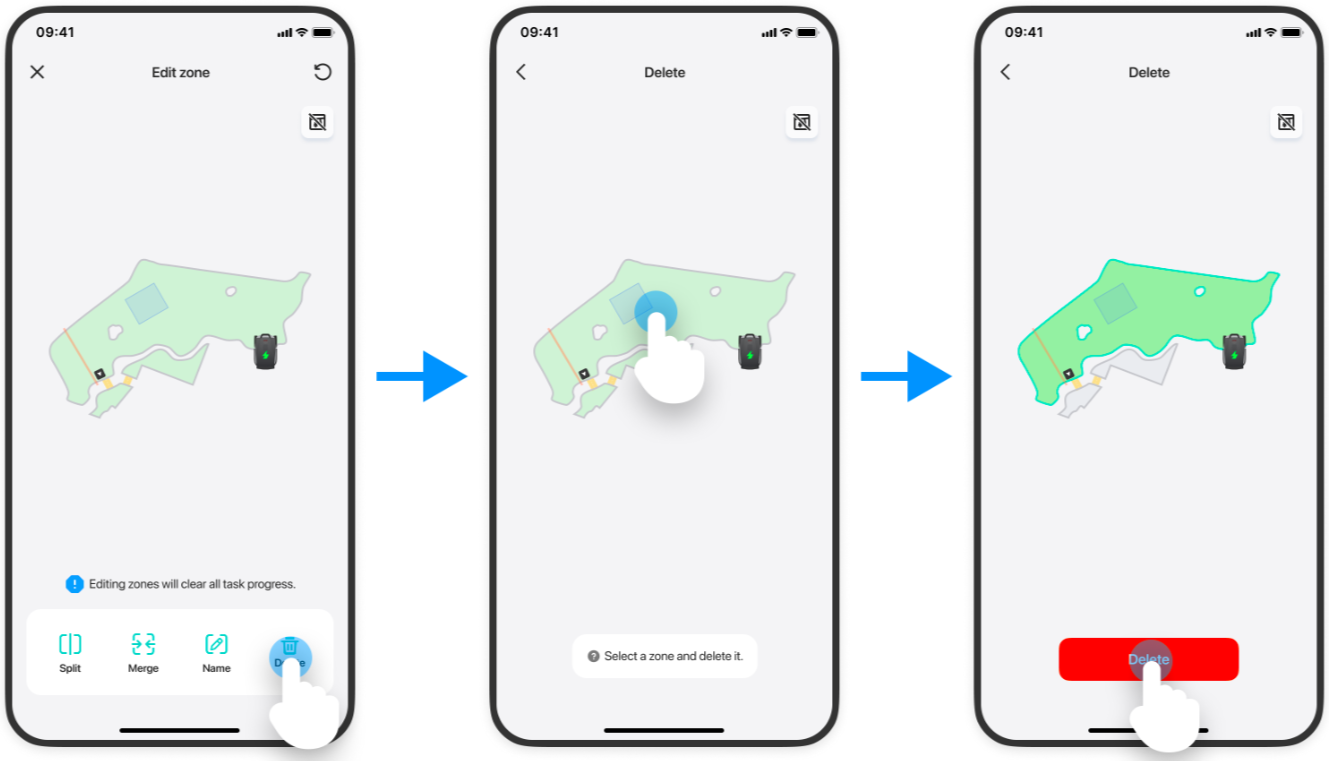
Deleting Zones
You can easily delete specific zones that are no longer needed. This feature helps you to organize and manage areas better.
Customizing Mowing Settings
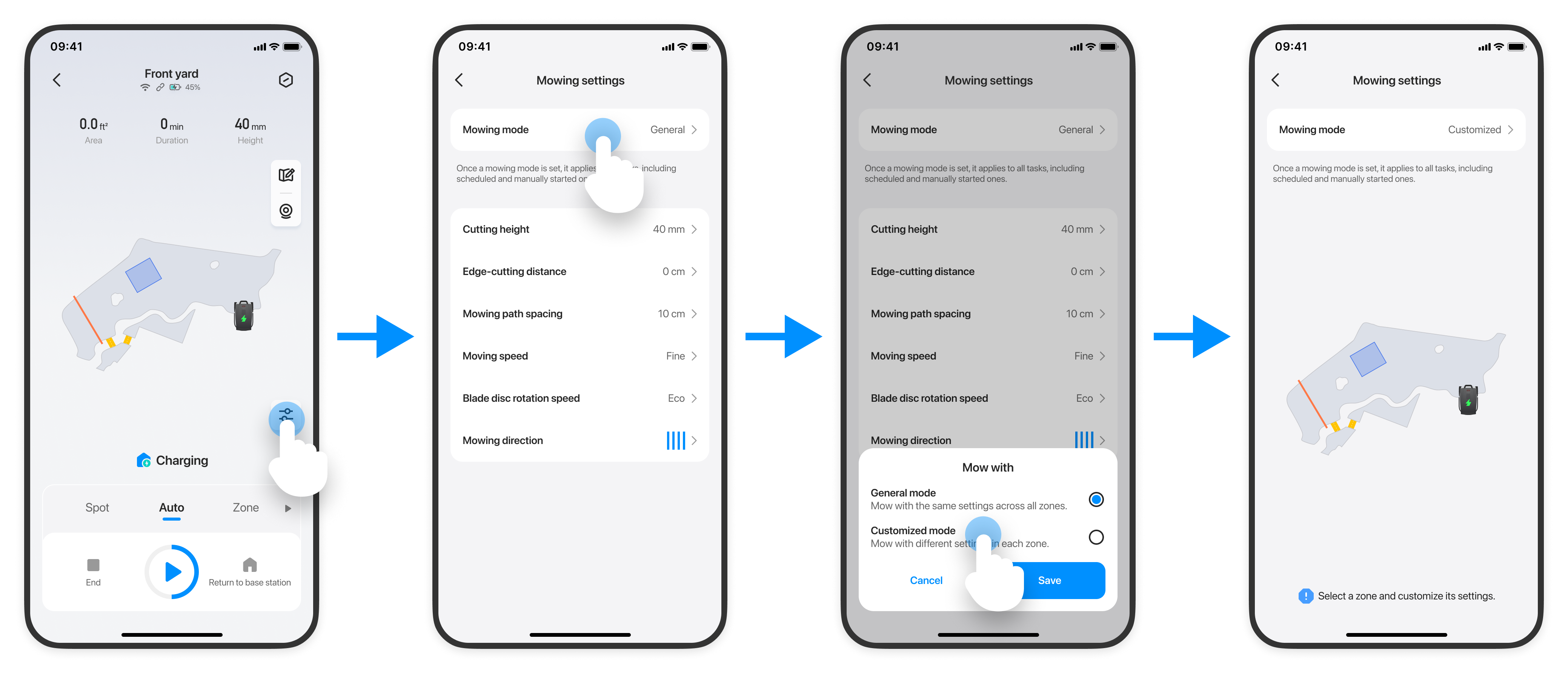
After editing, each zone can be tailored with individual mowing settings, such as "Mowing speed", "Cutting Height", and "Edge-cutting distance". This ensures that each area of your lawn receives the appropriate care tailored to its specific needs.
1. Click the mowing settings icon
2. Click 'mowing mode'
3. Select 'customized mode' and save
If you encounter any issues or have questions about activation, please do not hesitate to reach out to our Customer Service Team at support@terramow.com or submit a ticket.